English
 日本語
日本語 한국 사람
한국 사람 简体中文
简体中文 繁體中文
繁體中文 Deutsch
 بالعربية
 TÜRKÇE
 português
 คนไทย
คนไทยDisplay Playback Info On PotPlayer
PotPlayer can display a variety of detailed playback information.
| Shortcuts | Function |
|---|---|
| Ctrl + F1 | Playback / System information |
| Tab | Display Full Playback/Audio Tag Information / OSD |
| Scroll Lock | Display Misc Information |
| Shift + Tab | Show Short Playback Information |
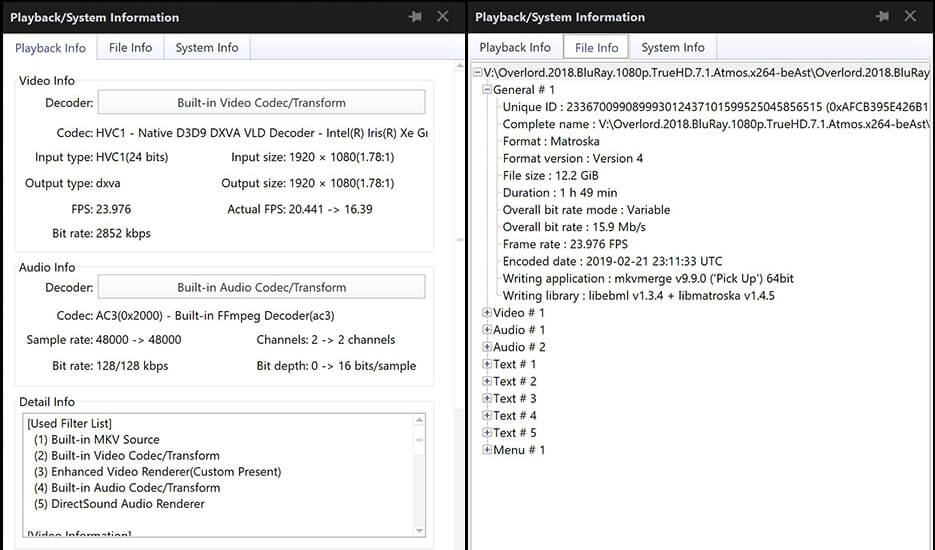
Playback / System information
Keyboard shortcuts:Ctrl + F1. Playback info,File info,System info.
Display Full Playback/Audio Tag Information (OSD)
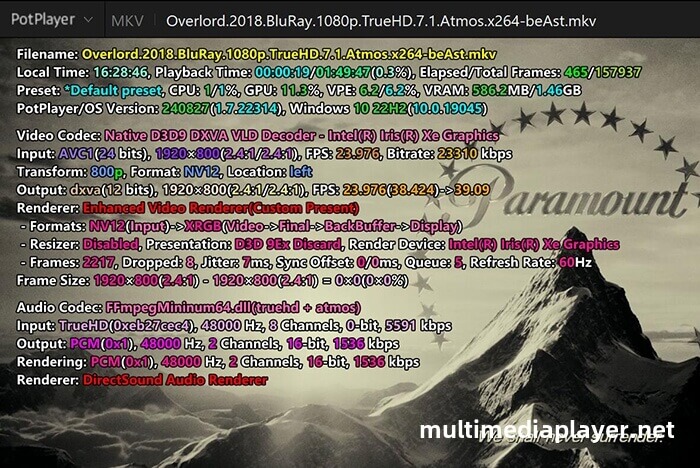
Keyboard shortcuts:Tab. You can see information such as System info,Video Encode,Audio Encode,video codec, renderer, resolution, FPS, bitrate, audio codec, etc.
What should I do if the OSD font size is too large, causing the text to overflow the player and become incomplete?
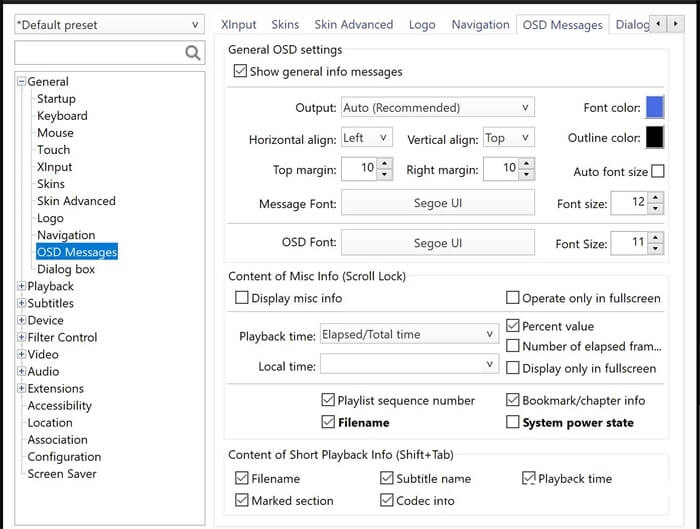
You can right‑click on the player, “Preferences - General - OSD messages”, and then adjust the font size. The default size is 11; you can change it to 8.

Display Misc Information
Keyboard shortcuts:Scroll Lock.
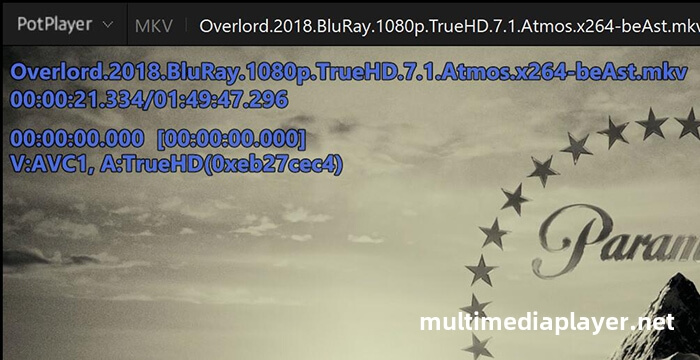
Show Short Playback Information
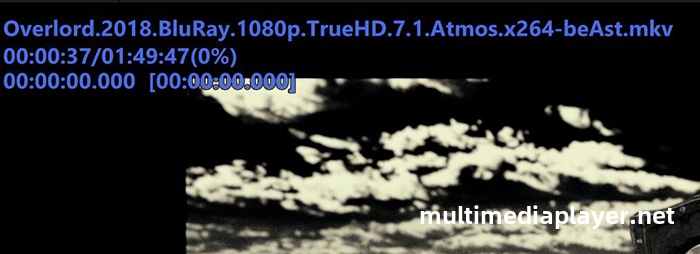
Keyboard shortcuts:Shift + Tab. It will disappear in 3 seconds.
Right mouse click on PotPlayer,“Preferences - General - OSD messages”.You can set the information items displayed by PotPlayer.